Connect Breakpoint Engine to ChatGPT
Breakpoint Engine connects to ChatGPT as a custom MCP app on the hosted service. Once
connected, ChatGPT can call the opm_* tools directly in your chat — estimate work, run OPM
forwardsolves and backsolves, explain breakpoints, and step through interactive financing scenarios on a
capitalization structure you paste into the conversation.
Looking for Breakpoint Engine in the ChatGPT Plugins Directory? It is not listed there yet. Until it
is, you add it as a custom MCP app by URL using the steps below — same tools, no directory listing required. All opm_* tools are pure computation: they read the cap table you provide and return numbers. Nothing
is stored and nothing outside the conversation is changed.
Requirements
- ChatGPT Business, Enterprise, or Edu — full custom MCP app support (beta), managed by workspace admins. ChatGPT Pro — individuals can connect MCP apps with read-level tools in developer mode.
- ChatGPT on the web — custom MCP apps are not available on mobile.
- A Breakpoint Engine account with work-unit credits — create an account and buy an Explore, Round, or Raise pack.
Setup — personal account (Pro)
- Sign in at breakpointengine.com/account and purchase a credit pack (the connector meters work units against your balance).
- In ChatGPT, open Settings → Apps → Advanced settings and enable Developer mode.
- Go to Settings → Apps → Create and enter:
- Name:
Breakpoint Engine - MCP server URL:
https://cloud.breakpointengine.com/mcp - Authentication: OAuth. Leave client ID and secret blank — the server supports dynamic client registration, so ChatGPT registers itself.
- Name:
- Click Scan Tools, complete the Auth0 sign-in when prompted (same account you purchased credits with), and wait for the scan to finish. Then click Create.
- The app appears under Settings → Apps → Enabled Apps with a Dev label. In a new
chat, select it from the tools menu (or mention it by name) and ask ChatGPT to call
opm_schemato confirm the connection.
Setup — Business / Enterprise / Edu workspace
- An admin or owner enables Developer mode — Business: User Settings → Apps → Advanced settings (each admin toggles it for themselves); Enterprise/Edu: grant access under Permissions & Roles → Connected Data, then enabled members toggle Settings → Apps → Advanced Settings.
- Create the app from Workspace settings → Apps → Create with the same name, URL, and OAuth settings as above; run Scan Tools and complete the Auth0 prompt.
- The app lands in Workspace Settings → Apps → Drafts. Test it in a chat, then an admin clicks Publish to make it available to the workspace. Enterprise/Edu admins can scope access and allowed actions with RBAC before publishing.
- Note: on Business plans a published app cannot be edited — to change tools or metadata, recreate and republish. Tool definitions are frozen at approval; if the server's tools change later, an admin refreshes them from Workspace settings.
First valuation in chat
Describe your cap table in plain language — the engine's schema tooling guides ChatGPT through the rest (schema → estimate → solve). A complete example you can copy, paste, and adapt:
Here's our cap table — please value it with the OPM.

Common stock
- Founders: 6,000,000 shares
- Employee options (granted): 1,200,000 at $0.10 strike, 300,000 at $0.35 strike
- Warrants on common: 150,000 at $0.75 strike

Preferred stock (Series A is senior to Seed)
- Series Seed: 2,000,000 shares, issued at $0.50/share,
  1x non-participating, liquidation preference $0.50 per share, seniority 2
- Series A: 2,500,000 shares, issued at $1.25/share,
  1x participating (no cap), liquidation preference $1.25 per share, seniority 1

Assumptions
- Volatility: 55%
- Risk-free rate: 4.25%
- Time to exit: 3 years
- No dividends, no debt

Backsolve the total equity value from the Series A price of $1.25/share.
Then present the full valuation allocation: per-share values for every
security class, the breakpoint schedule with each tranche's bull-spread
value, and how each tranche's value is allocated across the securities.
The structure that makes this work: share counts and strikes for every class, seniority stated explicitly, participation terms per series, the four assumptions, and — for a backsolve — the observed per-share price of one series. Asking for the allocation, breakpoints, and bull spreads up front matters too: the engine returns all of it in the backsolve response, so one message means one metered run presented in full. For a narrative walkthrough afterward, ask: "Explain every breakpoint in the exit waterfall — who participates in each tranche and why."
What a run looks like
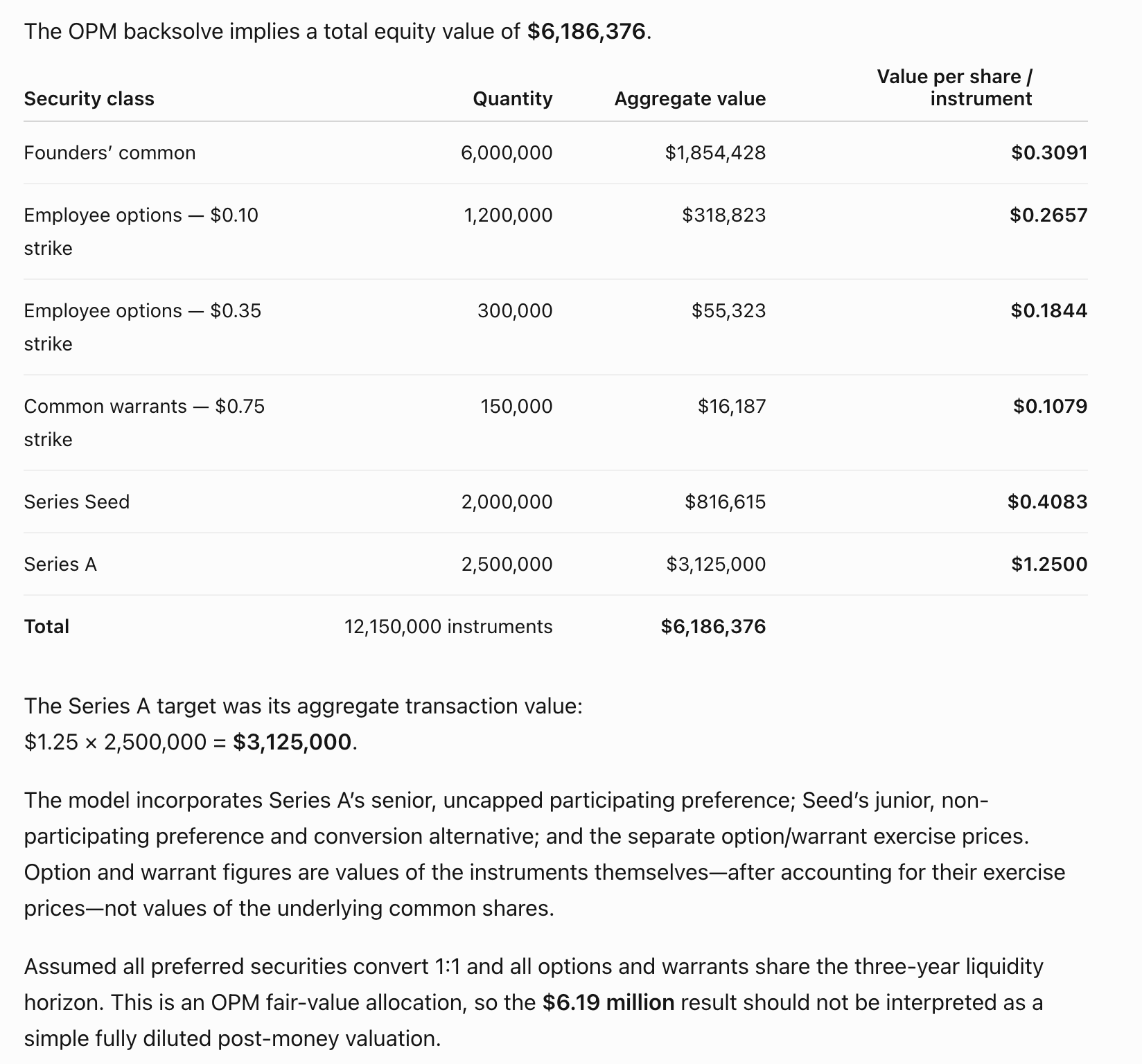
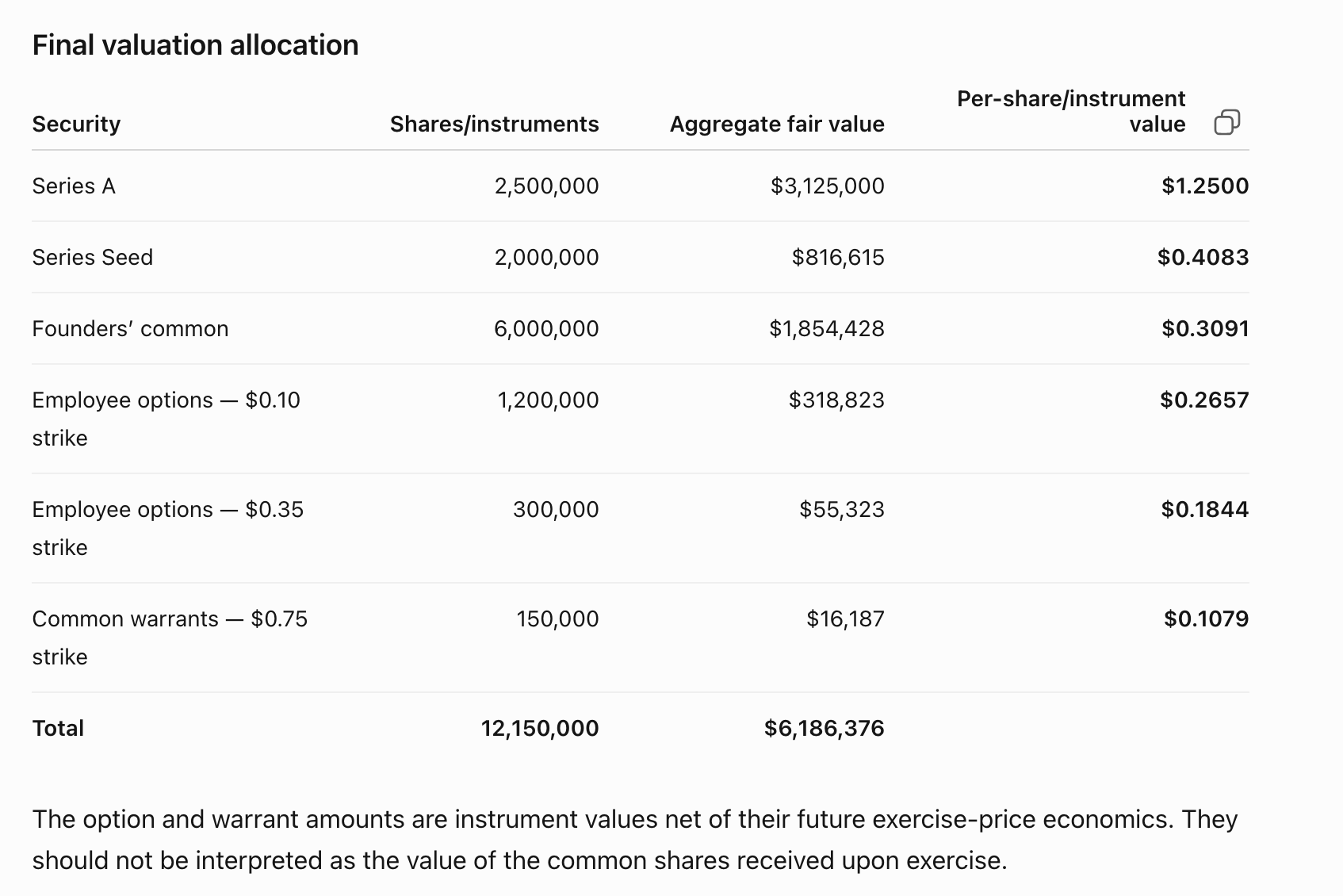
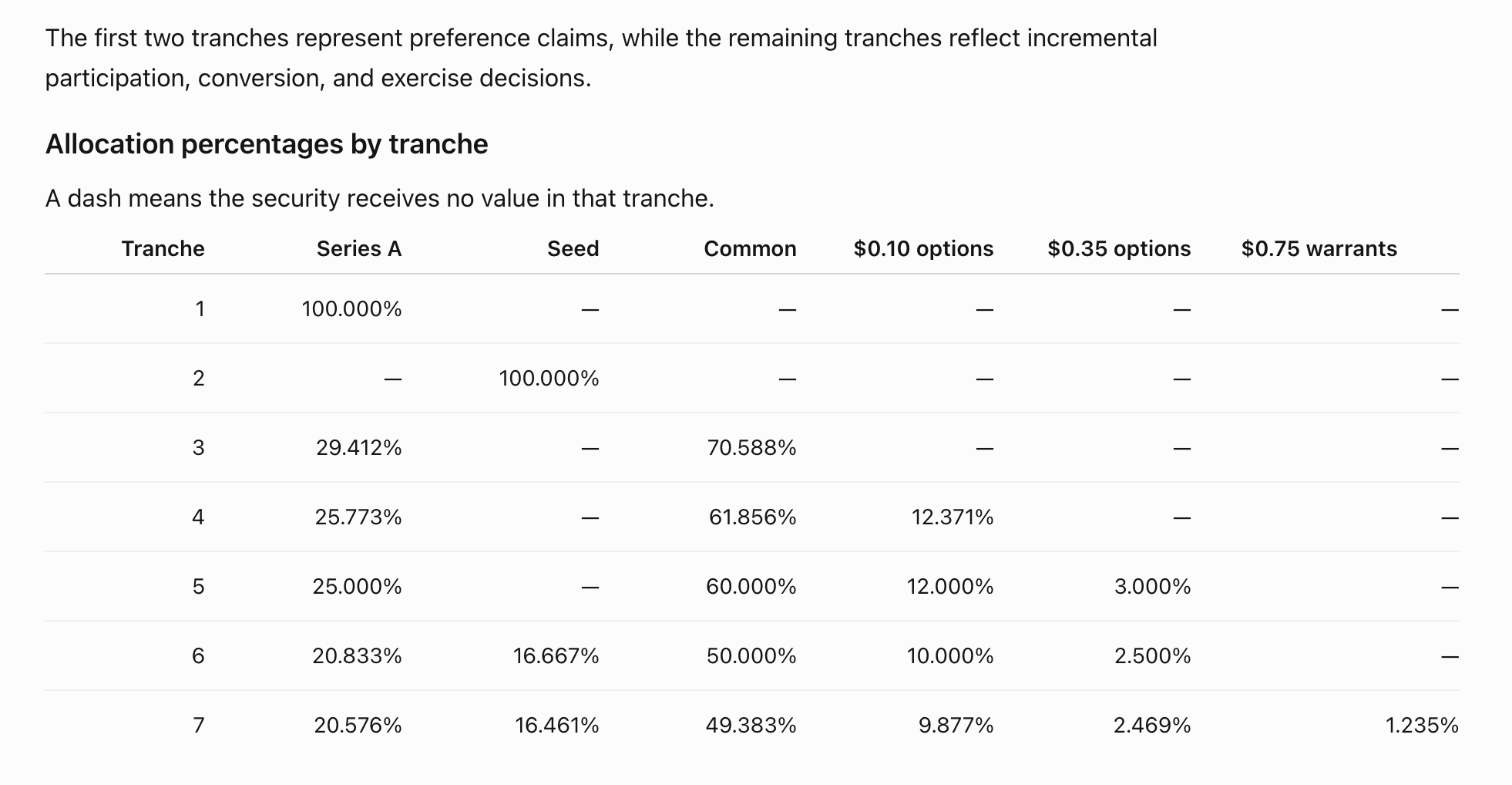
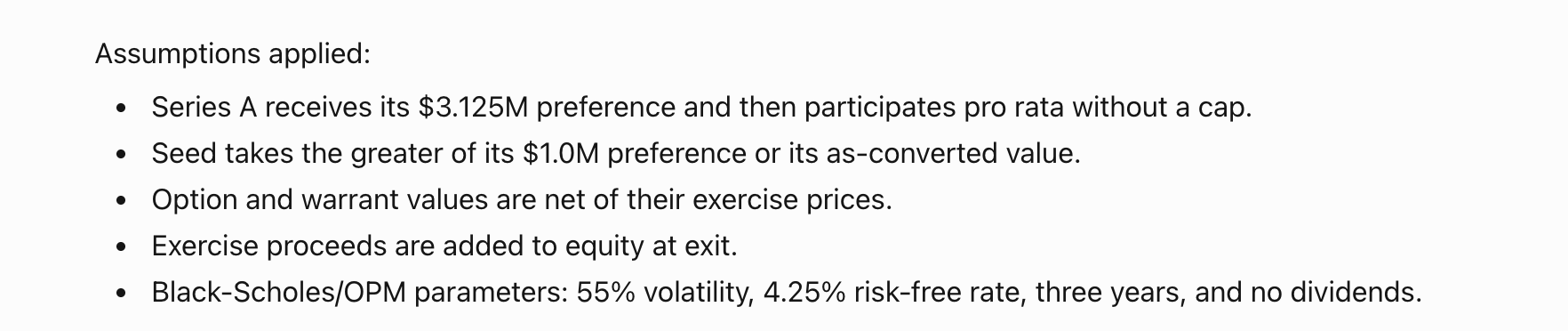
The tables below are unedited output from a live ChatGPT session running the prompt above — every number computed by the engine, deterministic and reproducible. ChatGPT converts the observed per-share price into the aggregate Series A target ($1.25 × 2,500,000 = $3,125,000), estimates the metered work, runs the backsolve, and presents the allocation.
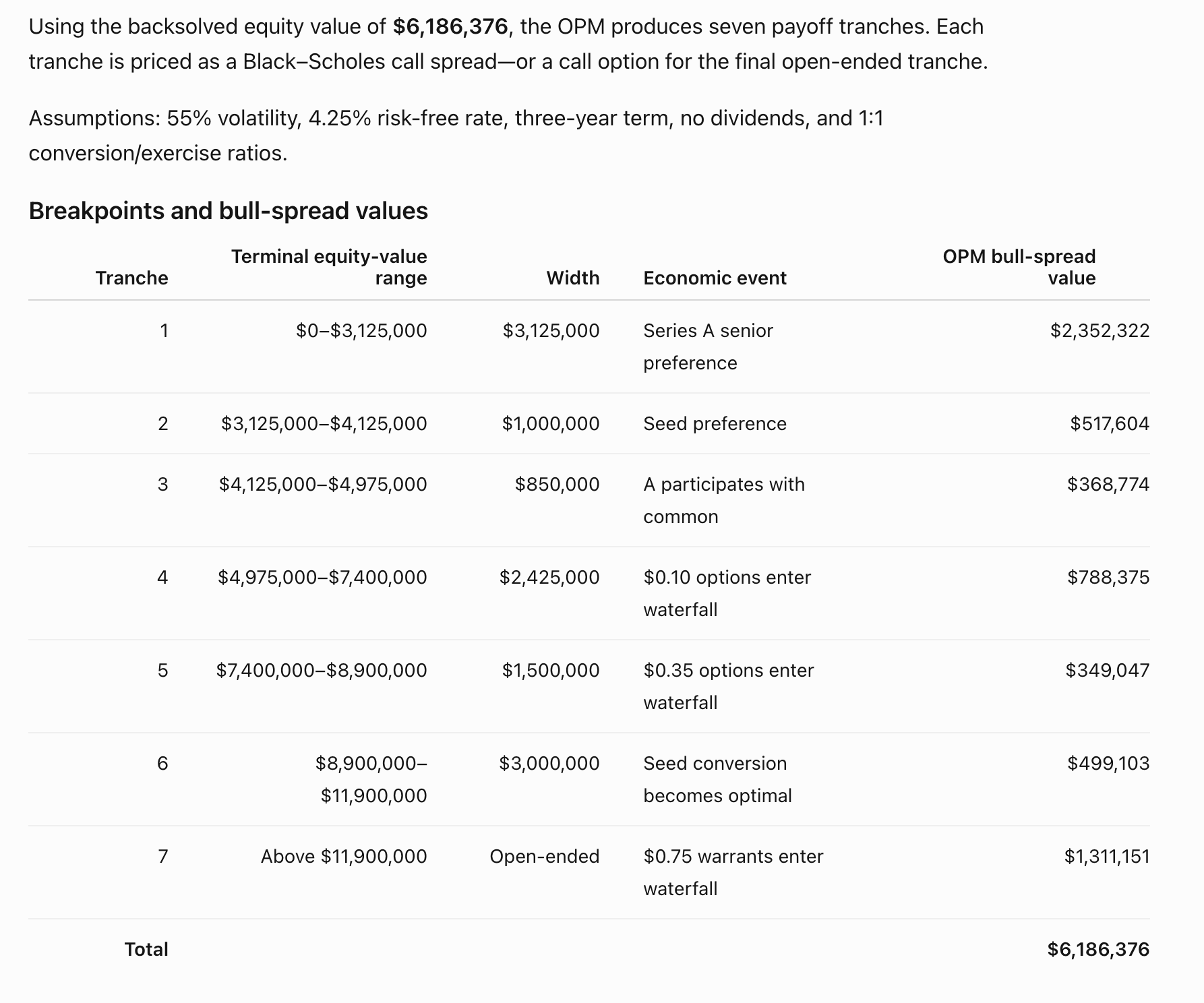
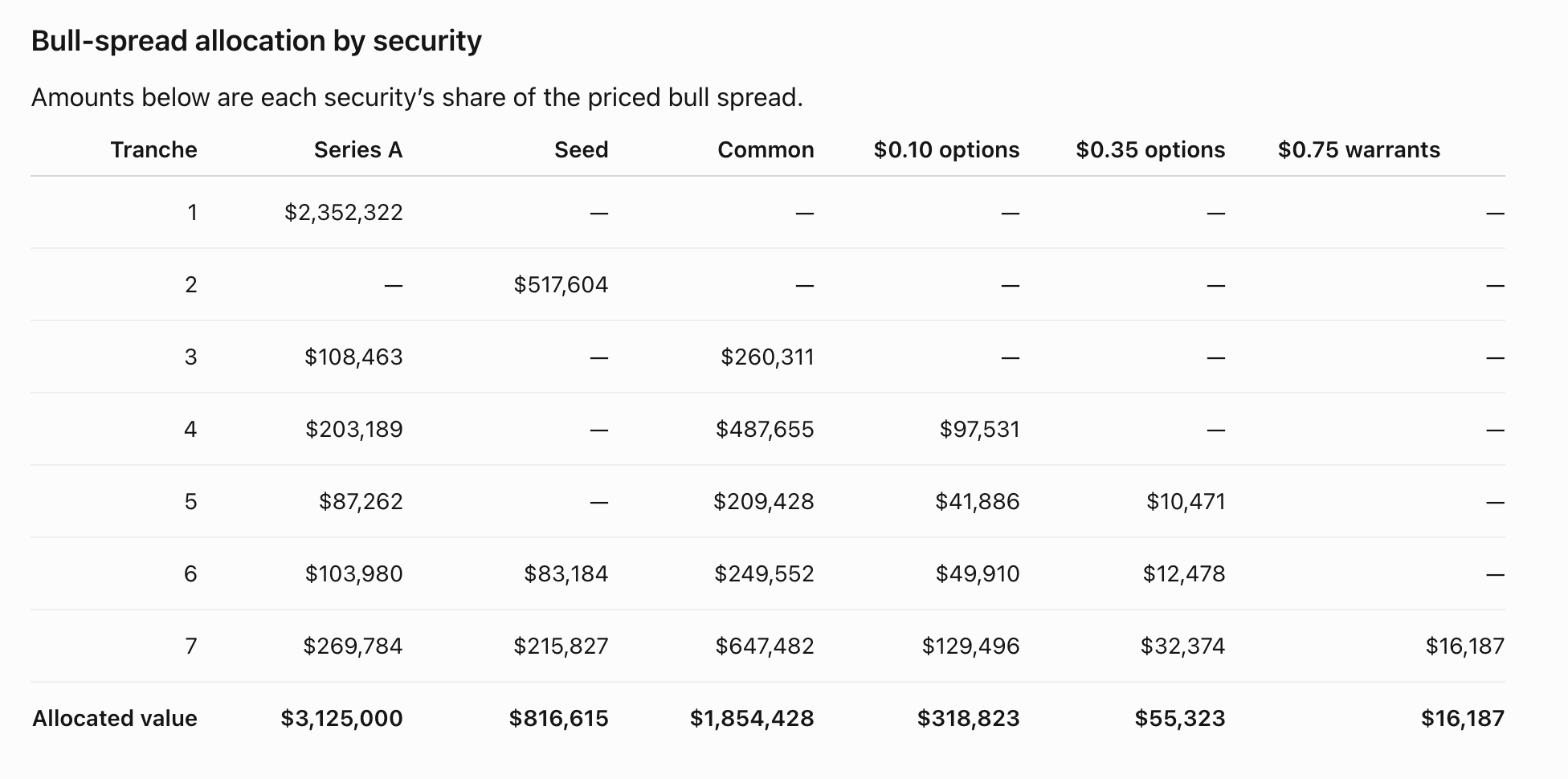
Asking for the breakpoint explanation returns the full waterfall mechanics — the seven tranches, the economic event at each boundary, and each tranche's Black–Scholes bull-spread value:
Confirm Breakpoint Engine was invoked
ChatGPT can reason fluently about valuation on its own — which is exactly why it matters to check that your numbers came from the engine and not from the model approximating the math. Deterministic numbers come only from tool calls. Three signs of a genuine run:
- Visible tool-call activity in the conversation — expandable tool-use entries for the estimate and the solve, not just prose with numbers in it.
- Work units consumed from your account balance — an engine run is metered; a model approximation costs nothing and moves nothing.
- No hedging phrasing like "I reproduced the OPM mechanics directly" — that is the model approximating: plausible-looking, but not deterministic, not reproducible, and typically off by real dollars per class.
If you got numbers with no visible tool calls, start a new chat, select the app from the composer tools menu, and ask again. Prefer exact control? Paste your capitalization structure and assumptions in the documented JSON format instead, ask for the cost estimate first, and confirm before solving.
ChatGPT may show an approval card before tool calls depending on your app permission setting (the default is Important actions). Deep research can use the connector for read/fetch only; agent mode does not use custom apps.
Troubleshooting
- No Create option under Apps — Developer mode must be on (Settings → Apps → Advanced settings), and on workspace plans only admins/authorized members can create apps.
- OAuth / registration error — leave client ID and secret blank so ChatGPT can register dynamically; confirm you can sign in at /account with the same identity.
- Connection failed / 401 — re-authorize the connector; the OAuth token may have expired (tokens last about one hour and refresh on reconnect).
- insufficient_credits (402) — your work-unit balance is empty; buy another pack on account.
- App missing in chat — Developer mode must remain enabled, and the app must be selected in the chat's tools menu.
- "Missing outstanding_shares" (or the model invents a max_work argument) — the model called
a solve tool directly without following the workflow. Tell it: "Call
opm_schemafirst and shape the cap table to that schema (share counts belong inoutstanding_shares), then callopm_estimateto see the cost, then the solve." The gateway sizes and admits every job itself; the tool schema carries every argument a solve takes. - Model says it can see the tools but "can't execute from here" — the app is installed but not enabled in this conversation. Start a new chat and select Breakpoint Engine from the composer tools menu; older chats don't pick up newly added apps.
- Tools worked earlier in the chat, then stopped — ChatGPT can silently detach an app between turns, and switching model or mode mid-chat (Thinking, deep research, agent) also drops custom apps. Re-enable it from the composer tools menu or start a new chat — and ask for the whole workflow (schema, estimate, solve) in a single message so every call runs within one turn.
- You got numbers, but no visible tool calls — check for language like "I reproduced the
OPM mechanics directly" or "the endpoint wasn't exposed, so I computed it." That means ChatGPT approximated the valuation itself instead of running the engine — plausible-looking but not
deterministic, not reproducible, and typically off by real dollars per class. A genuine engine run shows
tool-call activity for
opm_estimateand the solve, and consumes work units from your balance. If you see a simulated result, start a new chat and ask again — see Confirm Breakpoint Engine was invoked.
Cap tables are never stored — see how the engine handles data. Also see Claude setup, Cursor setup, and the tool reference.